Summary
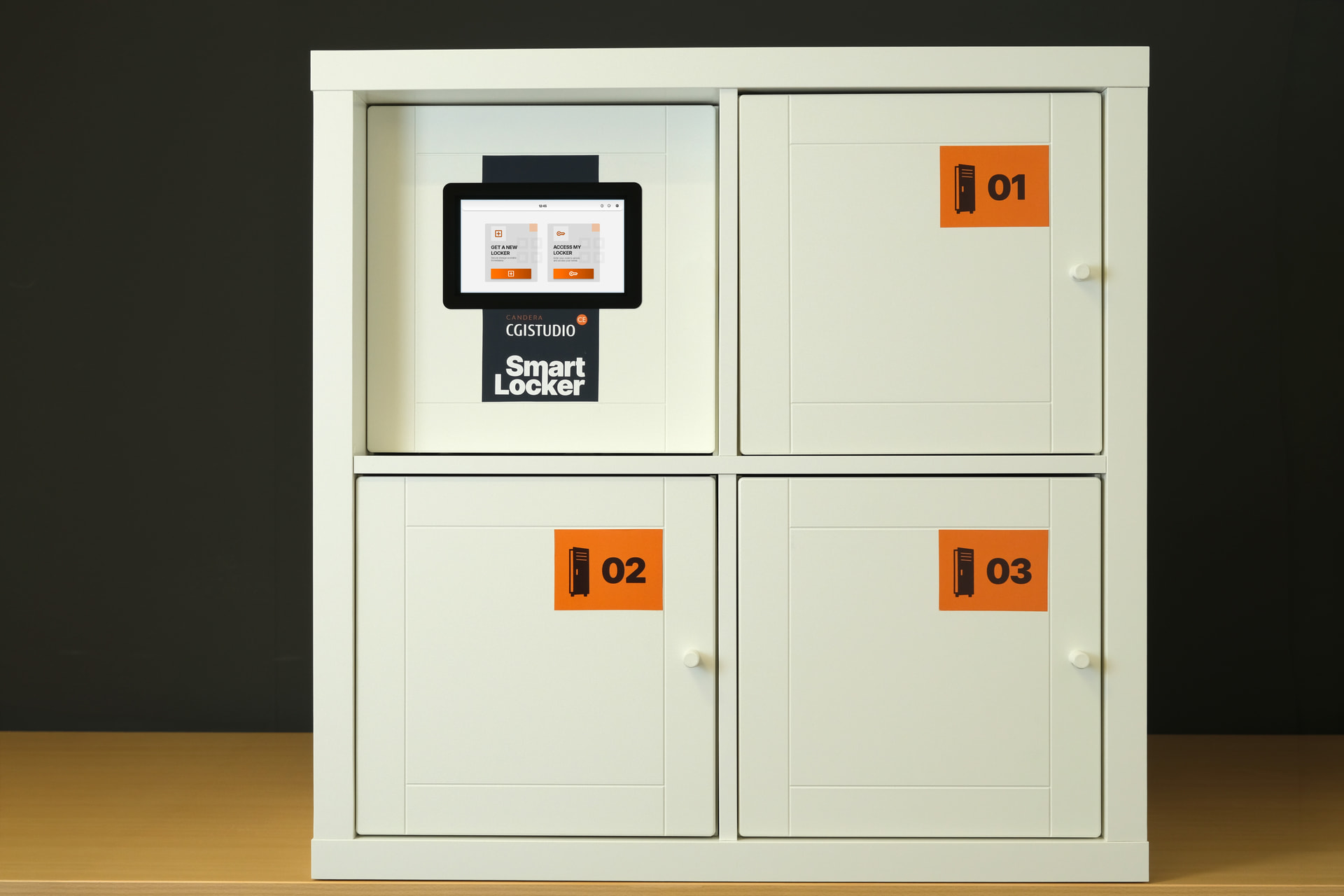
The Smart Locker system provides a secure and user-friendly solution for storing and retrieving personal belongings through a structured workflow implemented in Scene Composer. The application starts on the Home Screen, which offers two main options: Get New Locker and Access My Locker. Three utility icons are also available: Language, Help, and Info. The Language icon allows users to switch between English and German, the Info icon provides information about Candera CGI Studio, and the Help icon displays FAQs, usage guidance, and customer support information.
Selecting Get New Locker opens the Locker Selection Screen, where users can choose from three lockers. Available lockers can be selected, while occupied lockers are disabled and greyed out. After selecting a locker, users create a secure four-digit password, which must be confirmed on the following screen. If the passwords do not match, an error message is displayed and the user must try again. Once confirmed, the Locker Confirmation Screen summarizes the selected locker and provides instructions for secure usage.
To retrieve stored belongings, users select Access My Locker from the Home Screen. They then choose their assigned locker and enter the previously created four-digit password. A valid password unlocks the locker, while an incorrect password triggers an error message and another authentication attempt. Overall, the workflow provides secure access control, multilingual support, user assistance, and an intuitive experience for both locker allocation and retrieval.
Part 1: Solution Setup
Smart Locker Part 1: Solution Setup
To provide you with a good basis to re-create the solution on your own, we provide an empty solution. Based on this you can create the solution by following the step-by-step guide below. This empty solution includes all bitmap images used in the final solution as well.
In particular, the empty solution includes:
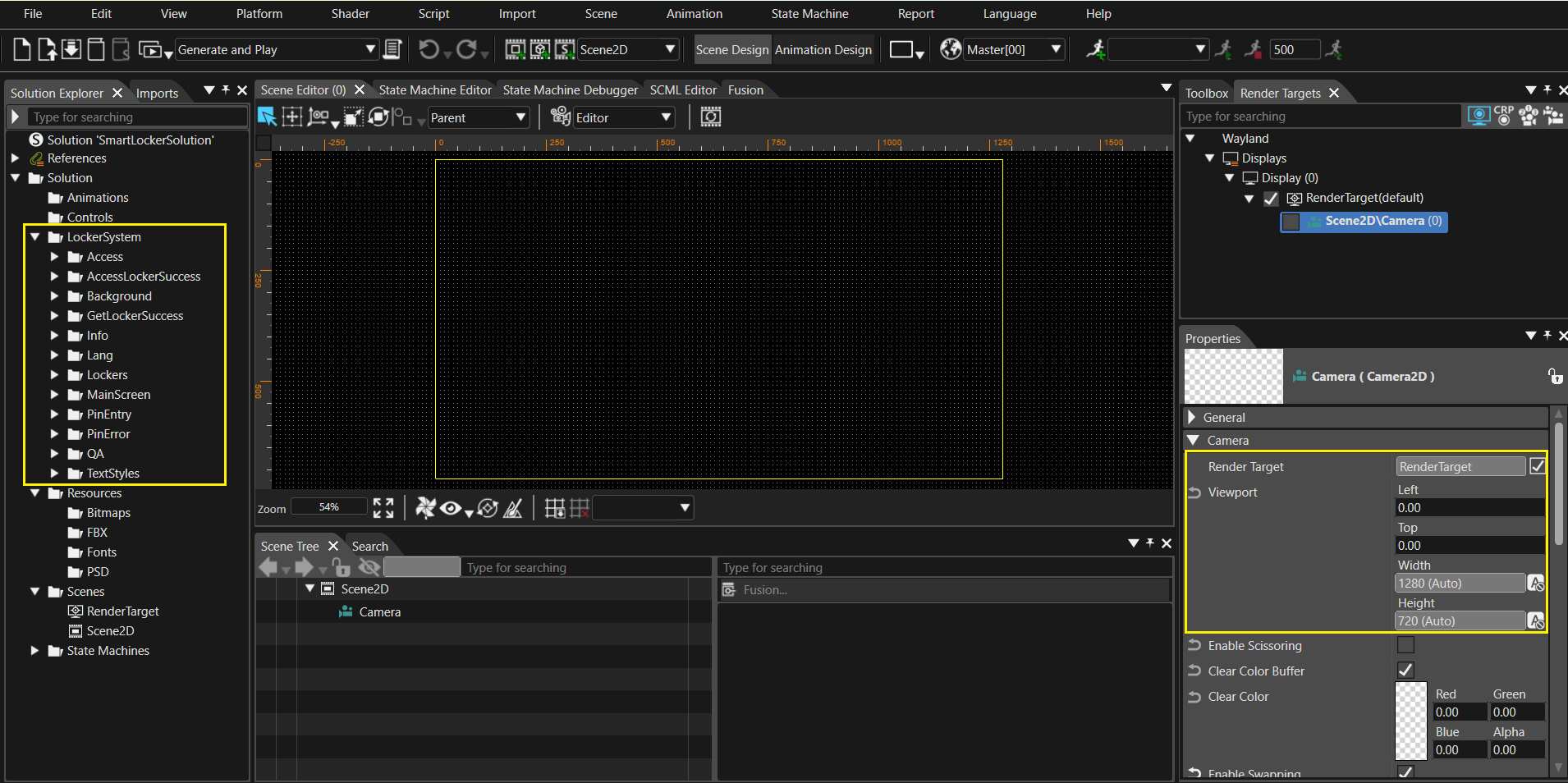
- Basic solution setup with 1280 × 720 resolution
- All used Custom Controls
- All bitmap images used in the final solution
- All used text styles
- Organized resource structure
- Ready-to-use bitmap resources
You can find all pre-imported bitmap images under Resources → Bitmap in the Solution Explorer. These resources can be used while creating scenes, controls, and application functionality.
Part 2: Background
Smart Locker Part 2: Background
- The background scene is common for all scenes and contains Back, Lang, Info and Help buttons.
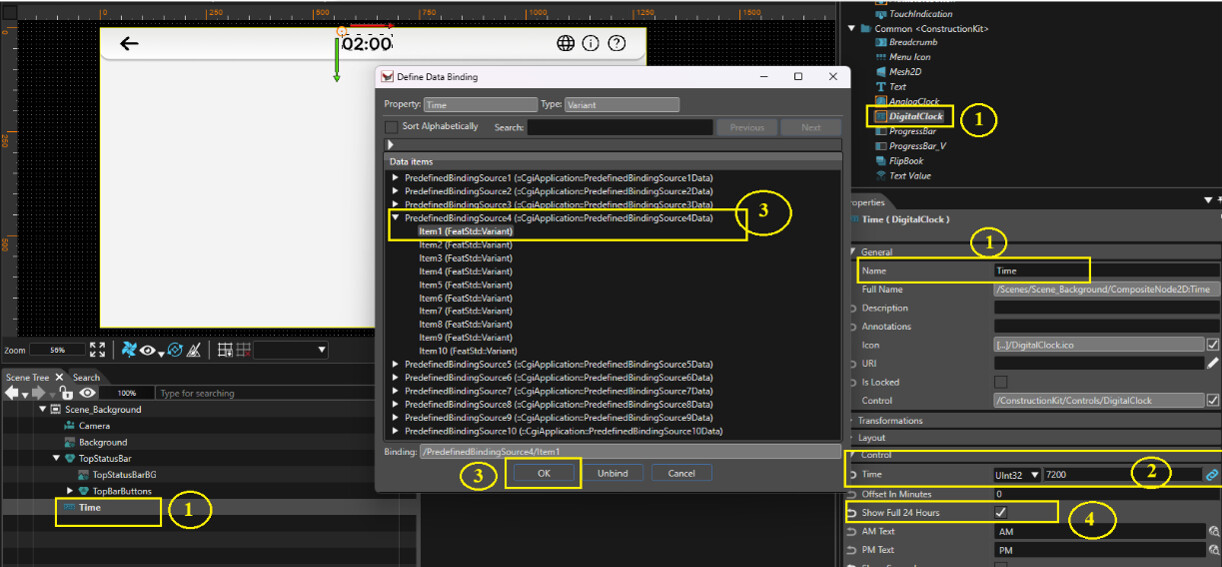
- Add DigitalClock (Time):
- Drag and drop Digital clock from Toolbox into scene tree and rename it as Time.
- Then in the control properties, Set the value as 7200 and click the link icon next to Time to attach databinding.
- Go to PredefinedBindingSource4 and select Item1 then click OK.
- Enable Show Full 24 Hours and disable Show Seconds.
- Add text styles for Hours Text Style, Minutes Colon Text Style and Minutes Text Style as Inter SemiBold_40.
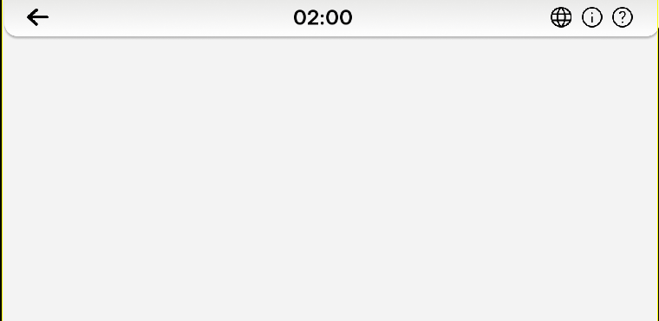
- Refer to the images below for the placement of the buttons and also the scene tree.
Part 3: Language
Smart Locker Part 3: Language
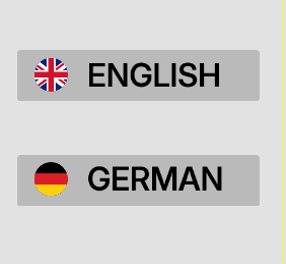
- This scene is the popup scene, so we need to change the camera properties so that it is displayed on the centre of the screen. Click the camera and in the properties change the values for Viewport: Left = 380, Top = 185, Width = 445, Height = 425 and disable Clear Color Buffer.
- Add Button:
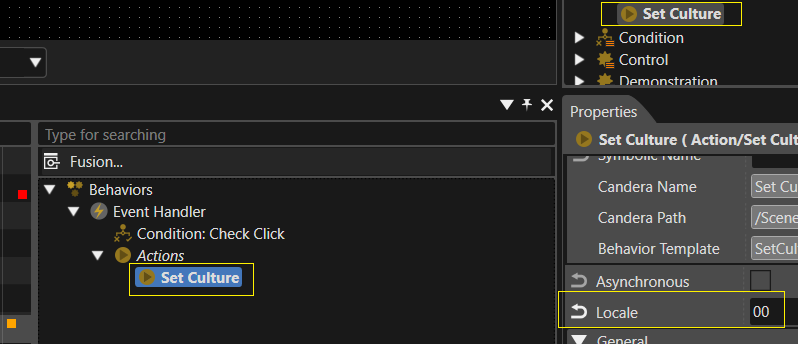
- Click Event Handler behavior of EnglishButton and disable ConsumeEvent.
- Drag and drop Set Culture Action into the behaviors of the button and o the properties of set culture add 00 to Locale.
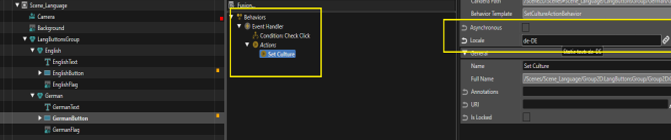
- Follow the same steps for adding GermanButton under the German group, but add Locale as de-DE.
- Add Text node from toolbox under English group node as English,
Properties:- Render Order Rank = 1.
- Similarly, add the text and flag for German Group node.
- Refer the above images for the placement and also the scene tree.
Part 4: Info
Smart Locker Part 4: Info
- Scene Info provides the information about the tool that is used to create Smart Locker solution.

Part 5: Help
Smart Locker Part 5: Help
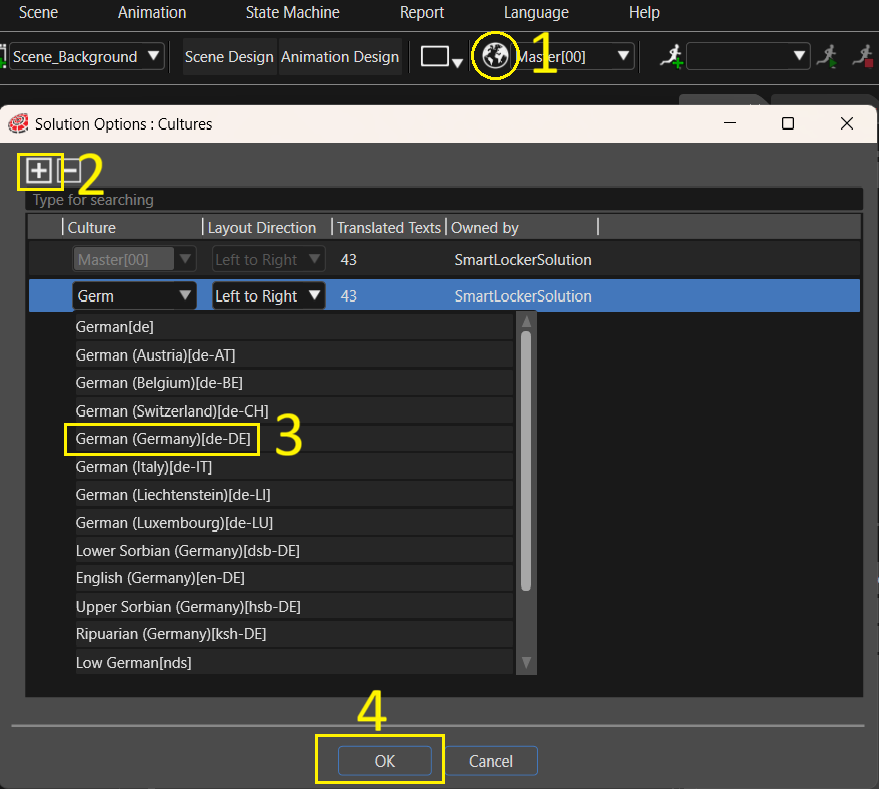
- As this solution supports the German language, follow the steps below to add German Language or translations for any other preferred language.
- Click the Globe Icon on the top.
- Click “+” icon.
- Search for preferred language, here for example it is German(de-DE).
- Click OK.
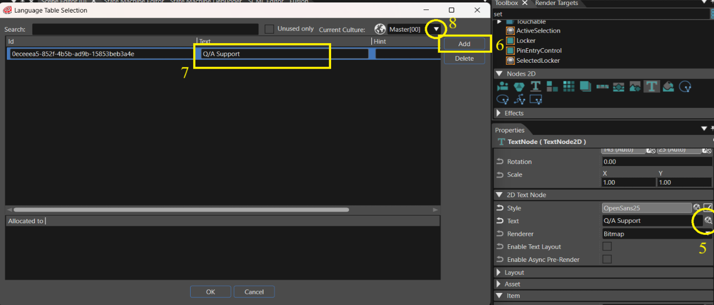
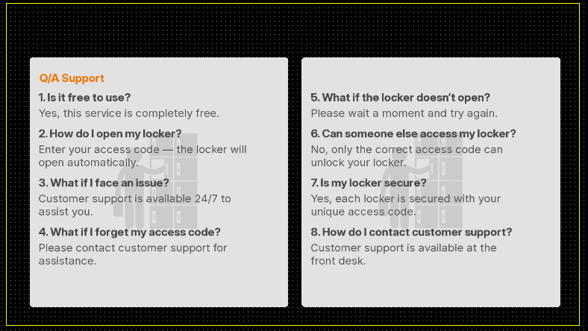
- Click Select template for item (browser icon) next to Text Q/A Support.
- On the Language Table Selection popup click Add.
- Add the Text “Q/A Support”.
- Click the drop down near Master [00] select German.
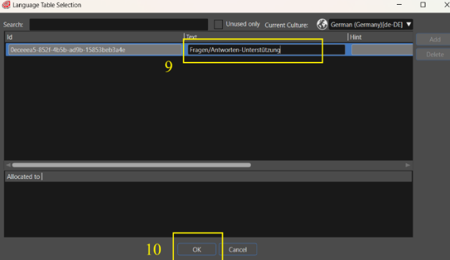
- Translate the text “Q/A Support” to German “Fragen/Antworten-Unterstützung” and add it under same Text ID.
- Click OK
- In the same way add German translated text for all the texts present in the solution.
- Refer to the image below for the text that needs to be added into the scene.
Part 6: Home Screen
Smart Locker Part 6: Home Screen
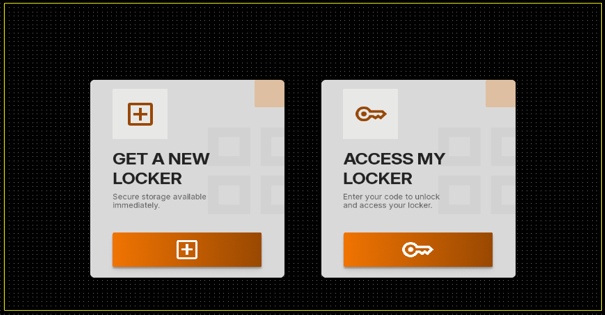
- HomeScreen scene is the main entry point where the user can either get a new locker or access the used locker by clicking on the Buttons.
Part 7: Pin Error
Smart Locker Part 7: Pin Error
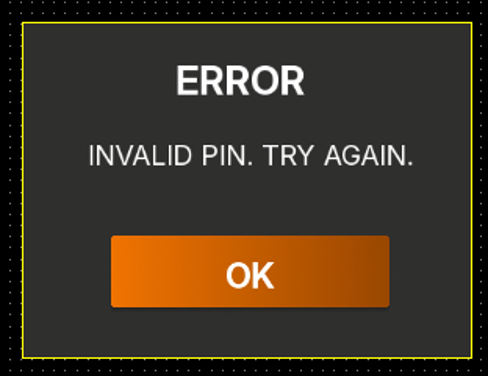
- Click the camera in the scene tree and in the properties change the viewport values Left = 400, Top = 229, Width = 400 and Height = 300.Disable Clear Color Buffer.
- Refer to the image below for position of text and button.
Part 8: Get Locker
Smart Locker Part 8: Get Locker
1. LockerGrp: (Render order rank = 2)
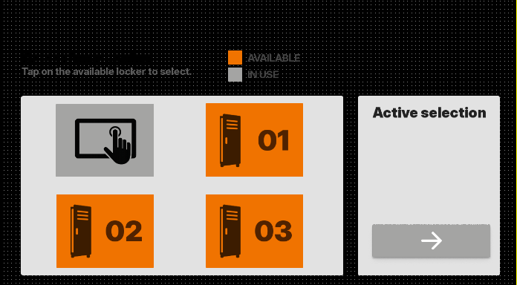
- This scene allows the user to select locker from the available lockers and the selected locker is displayed in the active selection part which is done by the SelectedLocker control.
- Drag and drop this SelectedLocker control to ActiveSelection group,
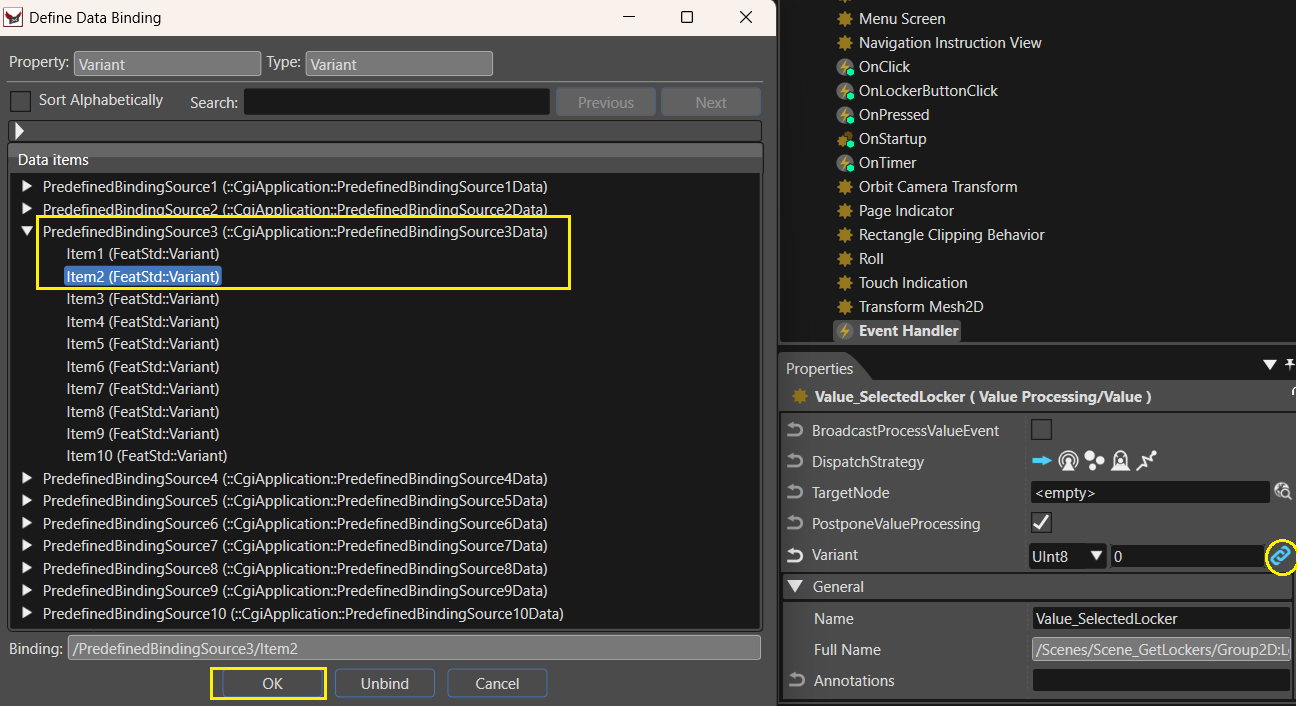
Properties:- Click the link icon next to Number and go to PredefinedBindingSource3 and select Item2, then click OK.
- State = 2.
- Drag and drop the Value behavior from toolbox to Locker group,
Properties:- Name = Value_SelectedLocker.
- Variant = UInt8 and 0.
- To attach Data binding = Click the link icon next to the Variant property go to PredefinedBindingSource3 and select Item2 and click OK.
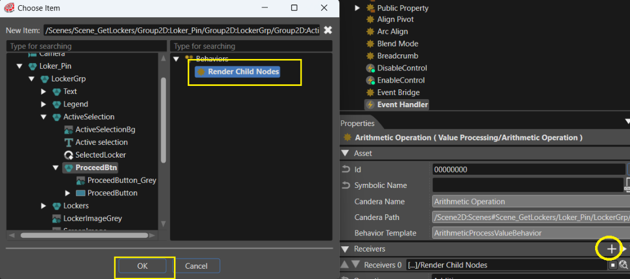
- Drag and drop Arithmetic Operation from toolbox to receivers of Value_SelectedLocker.
Properties:
* Operand = UInt8, 1.
* OutputType = UInt8Value,
* Click “+” icon of Receivers and add the render child nodes path of the ProceedBtn group and click OK.
- Add behaviors to Grid group(Contains all 3 lockers):
- Drag and drop Handle control state.
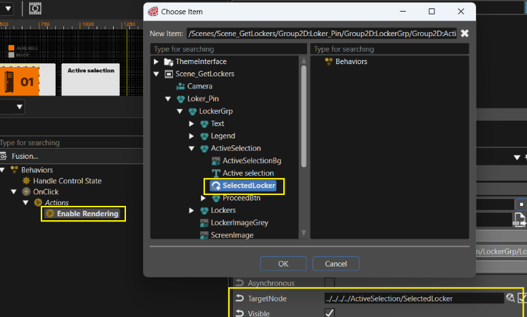
- Drag and drop OnClick from toolbox and to the Actions add Enable Rendering.
- In the properties of Enable rendering, select the SelectedLocker path for TargetNode and enable Visible property.
- Add behaviors to all 3 Lockers:
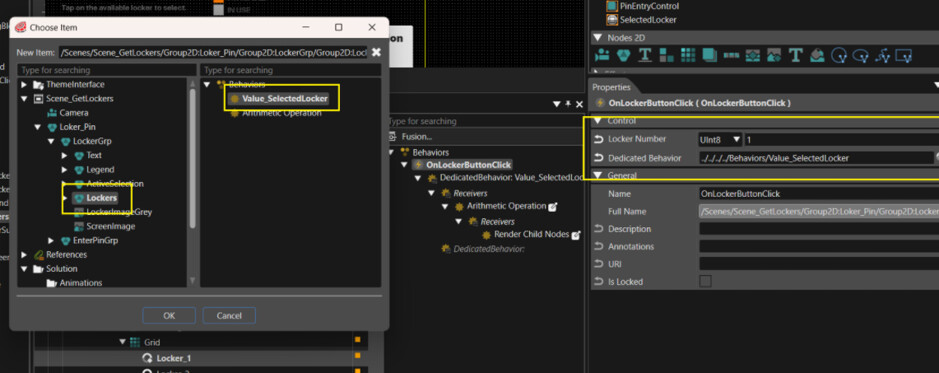
- Add OnLockerButtonClick from controls to the locker control under Grid group.
- Change the Locker Number to 1 and to the Dedicated Behavior property add the Value_SelectedLocker path of the Locker group.
- Now change the properties of Locker_1:
Properties:- Number = 1,
- State = 2.
- Click the link icon next to State property and go to PredefinedBindingSource1 and select Item1.
- Click Locker_2,
Properties:- Number = 2,
- State = 2.
- Click the link icon next to State property and go to PredefinedBindingSource1 and select Item2.
- Click Locker_3,
Properties:- Number = 3,
- State = 2.
- Click the link icon next to State property and go to PredefinedBindingSource1 and select Item3.
- Change the Locker Number to 1 and to the Dedicated Behavior property add the Value_SelectedLocker path of the Locker group.
- Refer to the image below to for the positions of buttons and texts.
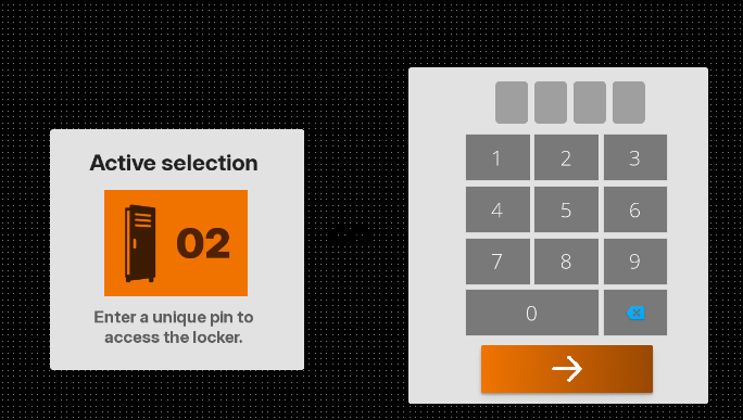
2. EnterPinGrp:(Create a group and render order rank = 1)
- Add ActiveSelection control to EnterPinGrp. In the properties,
- Pin Entry Index = Double and 1.00,
- Number = UInt8 and 2,
- Enable Touch = Disable.
- Create PinEntry group under Code group.
- PinEntryControl contains the filled and empty images which changes the password to filled image when the user enters the password.
- Drag and drop PinEntryControl to this group.
Properties:- Variant (attach databinding) = PredefinedBindingSource3, Item7.
- Clone the PinEntryControl 3 more times as PinEntryControl_1, PinEntryControl_2 and PinEntryControl_3.
- For PinEntryControl_1,
Properties:- Variant (attach databinding) = PredefinedBindingSource3, Item8.
- For PinEntryControl_2,
Properties:- Variant (attach databinding) = PredefinedBindingSource3, Item9.
- For PinEntryControl_3
Properties:- Variant (attach databinding) = PredefinedBindingSource3, Item10.
- Create HiddenPinEntry group node under Code group,
- Drag and drop the InputField under this group from Controls and rename it as InputField_pin1.
Properties:- Attach databinding to the Default Text = PredefinedBindingSource3, Item3.
- Placeholder Text = keep it empty,
- Set Value On Each Change = Enable,
- Max Text Length = 4,
- Just Digits = Enable,
- Keyboard Node = Path of the NumberKeyboard.
- Clone this input field once and rename it as InputField_pinConfirmed.
Properties:- Attach databinding to the Default Text = PredefinedBindingSource3, Item4.
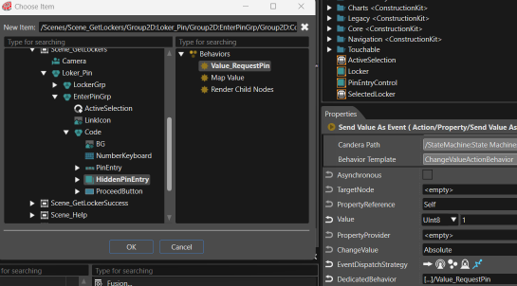
- Adding behaviors to HiddenPinEntry group, Drag and drop Value behavior.
Properties:- Name = Value_RequestPin,
- DispatchStrategy = Bubble,
- Variant = Bool and attach databinding (PredefinedBindingSource3, Item1)
- Add Map Value to the receivers of Value_RequestPin
Properties:- InputMin = Enable, Bool
- InputMax = Enable, Bool = Enable
- OutputMin = 1.00,
- OutputMax = 2.00,
- OutputType = FloatValue.
- Add Render Child Nodes to the receivers of Map Value and change the OperationMode to Single.
- Refer to the image below for position
Part 9: Access Locker
Smart Locker Part 9: Access Locker
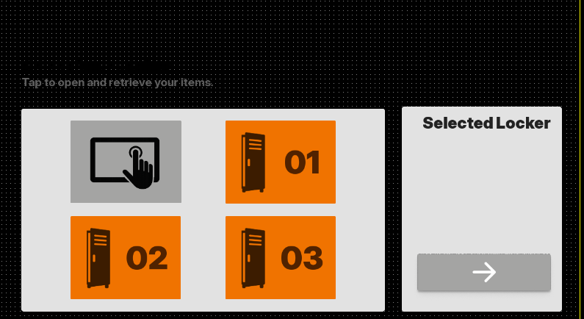
- LockerGrp:
- Render Order Rank for EnterPinGrp is 1 and for LockerGrp it is 2.
- Click SelectedLocker control and go to properties, click the link icon next to the Number and select Unbind to unbind databinding.
- For Lockers under Grid group unbind the State property.
- For all 3 lockers change the state to 3.
- Refer to the image below for positions of LockerGrp.
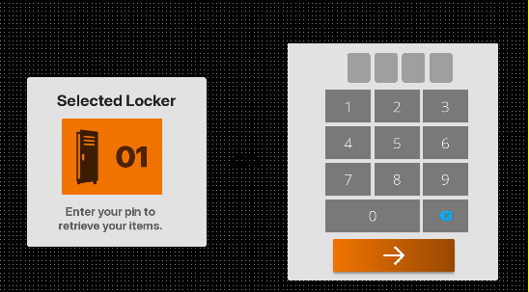
- EnterPinGrp:
- Add behaviors to Right group, drag and drop Value behavior.
Properties:- Name = REQUEST_TO_UNLOCK,
- DispatchStrategy = Bubble,
- Variant = UInt8 and 0, attach databinding (PredefinedBindingSource3, Item1)
- Add behavior to Proceed button, drag and drop OnClick to behaviors.
- To the actions of OnClick add Send Value As Event,
Properties:- Value = UInt8 and 2,
- EventDispatchStrategy = DedicatedBehavior.
- Drag and drop Value behavior to DedicatedBehavior of Send Value As Event.
Properties:- Variant = Attach databinding (PredefinedBindingSource3, Item1).
- Drag and drop SelectedLocker control to Left group,
- Refer to the image below for positions of EnterPinGrp.
- Add behaviors to Right group, drag and drop Value behavior.
Part 10: Get Locker Success
Smart Locker Part 10: Get Locker Success
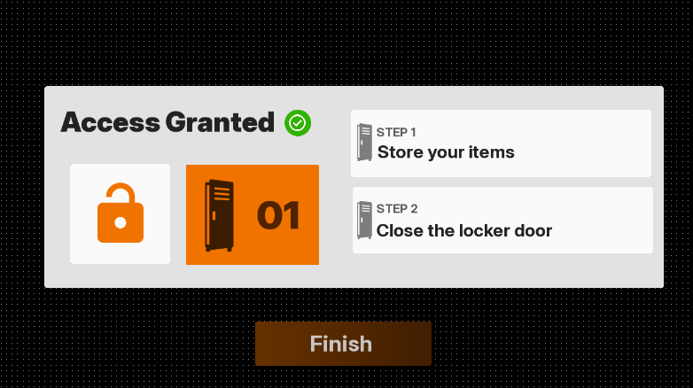
- Add behaviors to Finish button:
- Drag and drop Value behavior from toolbox to the Finish button behaviors,
Properties:- Name = Value_LockerClosed,
- Variant = Attach databinding (PredefinedBindingSource3, Item1)
2.To the receivers, add Action On Value and add Check Processed Value to the condition of Action On Value.
- In the properties of Check Processed Value change ConditionOperator to Equal and ConditionValue as 4.
- Add Set Control State to Actions of Action On Value rename it as Set Enabled and enable ChangeTo.
- Add Action On Value to receivers of Value_LockerClosed and add Check Not Condition to condition of Action On Value.
- Add Check Processed Value to condition of Check Not Condition and change the ConditionOperator to Equal and ConditionValue as 4.
- Add Set Control State to Actions of Action On Value rename it as Set Disable and change the State property to Enable.
Part 11: Access Locker Success
Smart Locker Part 11: Access Locker Success
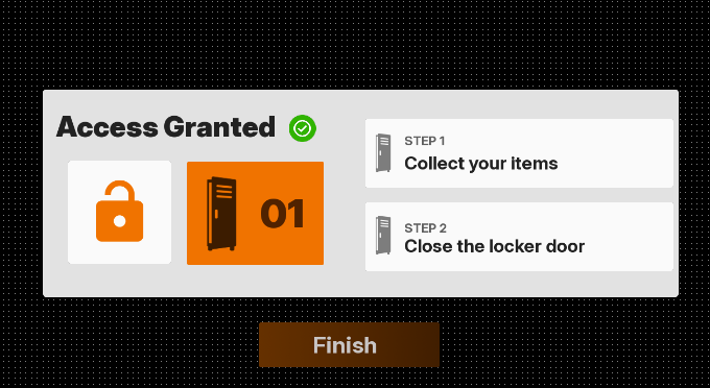
- Clone Scene_GetLockerSuccess in the Solution Explorer and rename it as Scene_AccessLockesSuccess.
- In the finish button change the condition value property of Check processed value of both the action on value to 0.
- Refer to the image below for text.
Part 12: State Machine
Smart Locker Part 12: State Machine
-
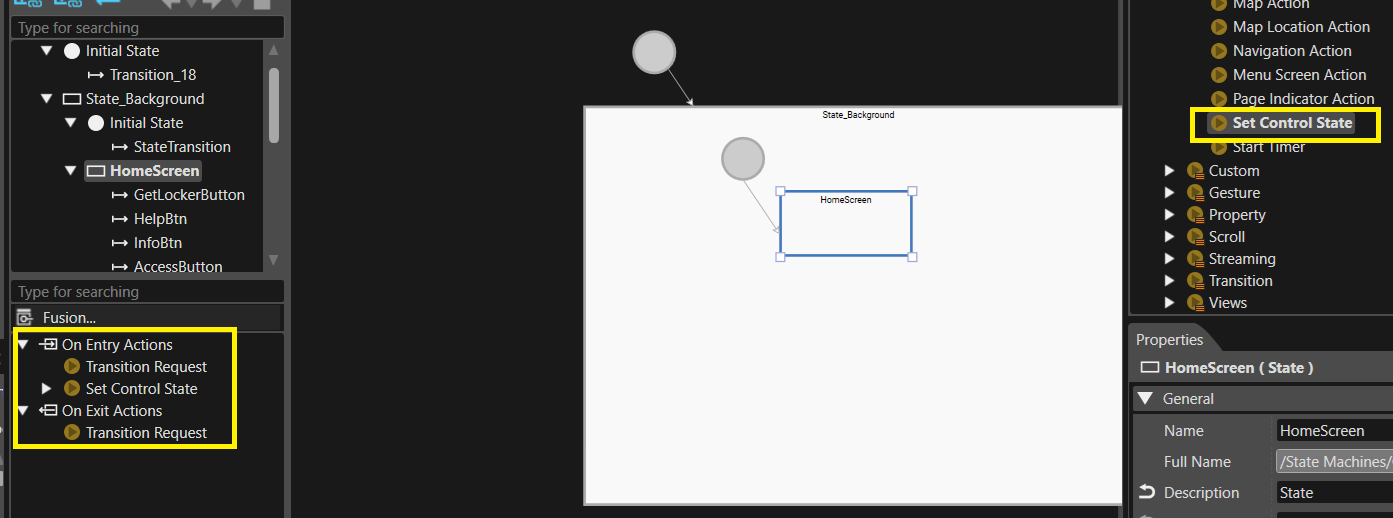
To the HomeScreen state drag and drop Set Control State from toolbox to On Entry Actions.
Properties:- TargetNode = Scene_GetLocker->LockerPin->EnterPinGrp->ProceedButton path.
- State = Enable
- ChangeTo = Enable
-
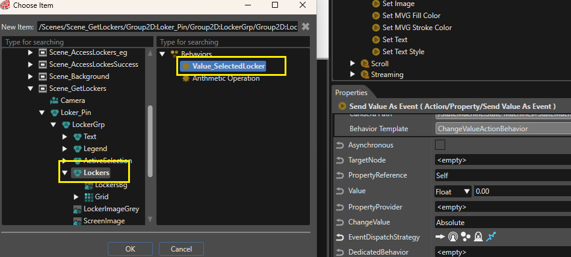
Add Send Value as Event to On Entry Actions,
Properties:- Name = ResetLockerNumber
- Value = UInt8, 0
- EventDispatchStatergy = Select DedicatedBehavior
- Dedicated Behavior = Value_SelectedLocker path
-
Add Render Child Nodes to On Entry Actions,
Properties:- TargetNode = TopBarButtons group path from Scene_Background
- Index = 2
- OperationNode = Single
-
Add Render Child Nodes to On Exit Actions,
Properties:- TargetNode = TopBarButtons group path from Scene_Background
- Index = 1
- OperationNode = Single
-
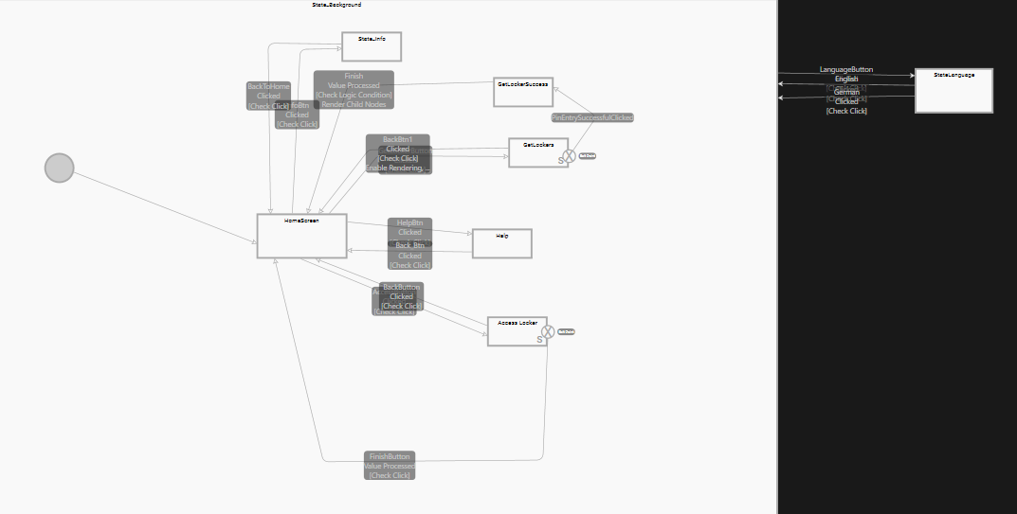
Add another states inside background state as State_Info and Help state, then add transitions.
-
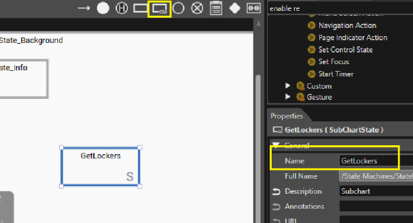
Create a SubChart state and rename it as GetLockers,
-
On Entry Actions
- Add Transition Request from Toolbox
Properties:- Request Type = Active.
- Identifier = Scene_GetLockers path.
- Add Render Child Nodes
Properties:- TargetNode = Locker_Pin group path from Scene_GetLockers.
- Index = 1.
- OperationMode = Single.
- Name = Render LockerPin.
- Add Set Control State
Properties:- TargetNode = ProceedButton path from EnterPinGrp of Scene_GetLockers.
- State = Enable.
- ChangeTo = Enable.
- Add Render Child Nodes
Properties:- TargetNode = NavigationButtons group path from Scene_Background.
- Index = 1.
- OperationMode = Single.
- Name = Render Navigation.
- On Exit Actions
- Add Transition Request from Toolbox
Properties:- Request Type = Deactive.
- Identifier = Scene_GetLockers path.
- Add Transition Request from Toolbox
- Add a transition from HomeScreen state to GetLockers state
Properties- Name = GetLockerButton.
- Sender [Event Filter] = add GetLockerButton path from Scene_Homescreen
- Add a transition from GetLockers state to HomeScreen state
Properties- Name = BackBtn1.
- Sender [Event Filter] = add BackButton path from Scene_Background
- To the Actions of this BackBtn1 transition add Enable Rendering
Properties- TargetNode =ProceedButton_Grey image path from Scene_GetLockers-> Locker_Pin-> LockerGrp.
- Visible = Enable.
- Add another Enable Rendering to the Actions
Properties- TargetNode =ProceedButton path from Scene_GetLockers-> Locker_Pin-> LockerGrp.
- Add Transition Request from Toolbox
-
Add a state inside background state as GetLockerSuccess
- On Entry Actions
- Add Transition Request from Toolbox
Properties:- Request Type = Active.
- Identifier = Scene_GetLockerSuccess path.
- Add Start Timer
Properties:- Delay = 10000.
- Add Render Child Nodes
Properties:- TargetNode = TopBarButtonsButtons group path from Scene_Background.
- OperationMode = Single.
- Name = Disable TopBarButtons.
- Add Transition Request from Toolbox
- On Exit Actions
- Add Transition Request from Toolbox
Properties:- Request Type = Deactive.
- Identifier = Scene_GetLockerSuccess path.
- Add a transition from GetLockerSuccess state to HomeScreen state
Properties- Name = Finish.
- Sender [Event Filter] = add FinidshBtn path from Scene_GetLockerSuccess
- Add Transition Request from Toolbox
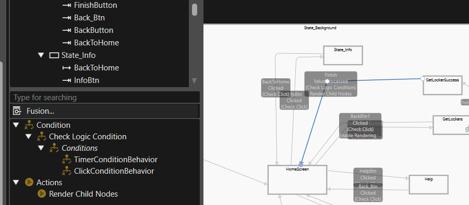
- In the Conditions of the Finish transition, add Check Logic Condition instead of Check Processed Value,
Properties:- Operation = OR.
- Add Check Timer to conditions of Check Logic Condition,
Properties:- Name = TimerConditionBehavior
- Add Check Click to conditions of Check Logic Condition,
Properties:- Sender = Finishbtn path from Scene_GetLockerSuccess
- On Entry Actions
-
To the Actions add Render Child Node
Properties:- TargetNode = Locker_Pin group path from Scene_GetLockers
- Index = 1
- OperationMode = Single
-
Create another SubChart state and rename it as Access Locker,
-
On Entry Actions
- Add Transition Request from Toolbox
Properties:- Request Type = Active.
- Identifier = Scene_AccessLocker path.
- Add Set Control State
Properties:- TargetNode =ProceedButton path from LockerGrp of Scene_AccessLocker
- State = Enable.
- ChangeTo = Enable.
-
On Exit Actions
- Add Transition Request from Toolbox
Properties:- Request Type = Deactive.
- Identifier = Scene_AccessLockesSuccess path.
- Add Transition Request from Toolbox
Properties:- Request Type = Deactive.
- Identifier = Scene_AccessLocker path.
- Add Transition Request from Toolbox
-
Add a State outside the State_Background state and rename it as State_Language and add transitions.
-
Add a State as State_LockerSelection and add transition from initial state to State_LockerSelection state.
-
To the On Entry Actions
- Add Render Child Nodes
Properties:- TargetNode = Locker_Pin group path from Scene_GetLockers
- Index = 1
- OperationMode = Single
- Name = Render LockerGrp
- Add Enable Rendering
Properties:- TargetNode =SelectedLocker control path from LockerGrp of Scene_GetLockers
- Name = Disable SelectedLocker
- Add Send Value as Event
Properties:- Value = UInt8, 0
- EventDispatchStrategy = DedicatedBehavior
- DedicatedBehavior = select Value_SelectedLocker behavior of Lockers group (Scene_GetLockers-> Locker_Pin-> LockerGrp-> Lockers)
- Name = Reset ProceedButton
- Add Render Child Nodes
-
Add another State as State_EnterPin
- To the On Entry Actions
- Add Send Value as Event
Properties:- TargetNode = ActiveSelection control path from Scene_ GetLockers-> EnterPinGrp.
- Value = Float, 1
- Name = Render FirstPinEntryText
- Add Set Control State
Properties:- TargetNode =ProceedButton path from EnterPinGrp of Scene_GetLockers
- State = Enable.
- Name = DisableProceedButton
- Add Set Focus
Properties:- TargetNode = InputField_pin1 path from Scene_GetLockers
- Name = Focus FirstPinEntryTextField
- Add Render Child Nodes
Properties:- TargetNode = Locker_Pin group path from Scene_GetLockers
- Index = 2
- OperationMode = Single
- Name = Render EnterPinGrp
- Add Send Value as Event
Properties:- TargetNode = InputField_pin1 path from Scene_GetLockers
- Value = String, remove 0 from value
- Name = Reset FirstPinEntryTextField
- Add Send Value as Event
Properties:- TargetNode = ActiveSelection control path from Scene_ GetLockers-> EnterPinGrp.
- Value = Float, 1
- Name = RenderEnterPin ActiveSelection
- Add Send Value as Event
Properties:- TargetNode = PinEntry group path from Scene_ GetLockers-> EnterPinGrp.
- Value = Bool
- EventDispatchStrategy = BroadCast
- Name = Reset PinEntry
- Add Send Value as Event
- To the On Entry Actions
-
Add another State as State_Error
-
Add another State as State_ConfirmPin
-
To the On Entry Actions
- Add Set Control State
Properties:- TargetNode =ProceedButton path from EnterPinGrp of Scene_GetLockers
- State = Enable.
- Name = DisableProceedButton
- Add Send Value as Event
Properties:- TargetNode = ActiveSelection control path from Scene_ GetLockers-> EnterPinGrp.
- Value = Float, 2
- Name = Render ConfirmPinActiveSelection
- Add Send Value as Event
Properties:- TargetNode = PinEntry group path from Scene_ GetLockers-> EnterPinGrp.
- Value = Bool
- EventDispatchStrategy = BroadCast
- Name = Reset PinEntry
- Add Render Child Nodes
Properties:- TargetNode = HiddenPinEntry group path from Scene_GetLockers
- Index = 2
- OperationMode = Single
- Name = Render ConfirmPinEntryTextField
- Add Set Focus
Properties:- TargetNode = InputField_pinConfirmed path from Scene_GetLockers
- Name = Focus ConfirmPinEntryTextField
- Add Send Value as Event
Properties:- TargetNode = InputField_pinConfirmed path from Scene_GetLockers
- Value = String, remove 0 from value
- Name = Reset ConfirmPinEntryTextField
- Add Set Control State
-
Add transitions
-
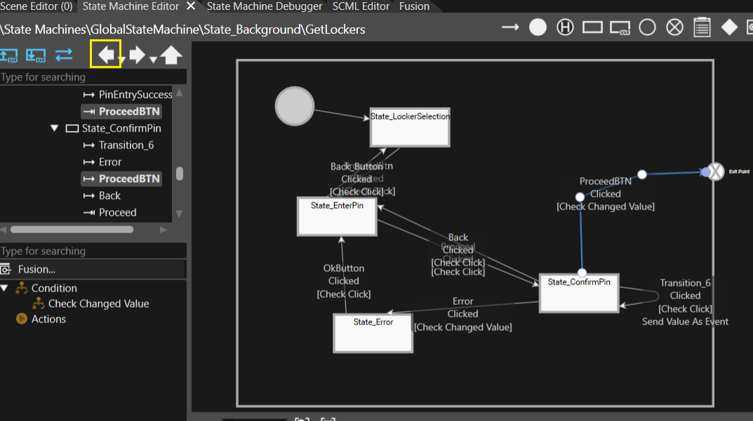
From State_ConfirmPin to State_Error, rename as Error add Check Changed Value to the Condition
Properties- ConditionOperator = Equal
- ConditionValue = UInt8, 100
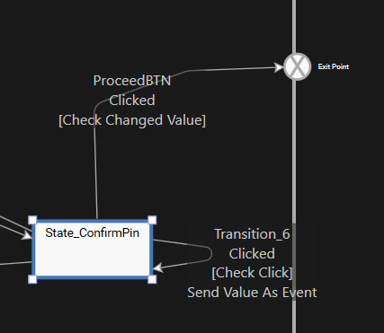
- From State_ConfirmPin to itself
Properties- Sender [Event Filter] = ProceedButton from EnterPinGrp of Scene_GetLockers.
- To the Actions of the transition add Send Value as Event
Properties- Values = UInt8, 1
- EventDispatchStrategy = DedicatedBehavior
- DedicatedBehavior = Add Value_RequestPin path
-
Add Exit Ponit to the Substate and add transition from State_ConfirmPin to Exit Point as ProceedBTN.
-
To the condition of the transition ProceedBTN add Check Changed Value.
Properties- ConditionOperator = Equal
- ConditionValue = UInt8, 3
-
Refer to the image below for SubState of GetLockers amd to go back to main statemachine click back highlighted in the image below.
-
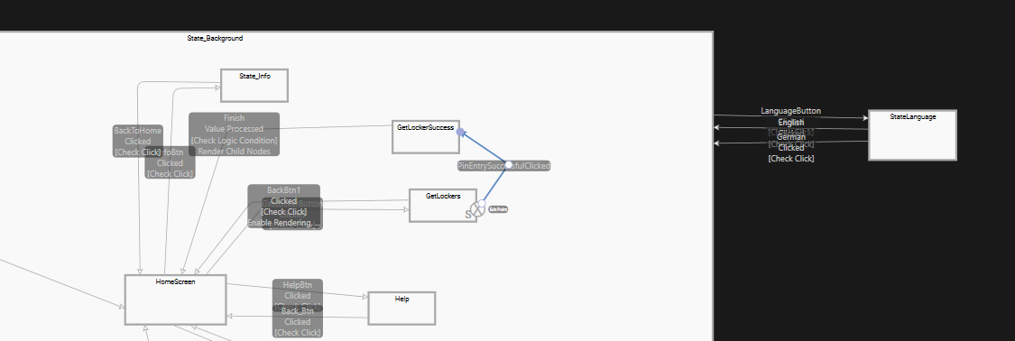
Add a transition from this exit point to GetLockerSuccess
Properties- Name = PinEntrySuccessful
- Sender [Event Filter] = ProceedButton path from EnterPinGrp of Scene_GetLockers
-
Refer to the image below for placement of the states and transitions
-
Add a State as State_AccessLocker and add transition from initial state to State_AccessLocker state.
- To the On Entry Actions
- Add Render Child Nodes
Properties:- TargetNode = AccessLocker group path from Scene_AccessLocker.
- Index = 1
- OperationMode = Single
- Name = Render AccessLockerGroup
- Add Enable Rendering
Properties:- TargetNode =SelectedLocker control path from LockerGrp of Scene_AccessLocker
- Name = Disable SelectedLocker
- Add Send Value as Event
Properties:- Value = UInt8, 0
- EventDispatchStrategy = DedicatedBehavior
- DedicatedBehavior = select Value_SelectedLocker behavior of Lockers group (Scene_AccessLocker-> AccessLocker-> LockerGrp-> Lockers)
- Name = Reset ProceedButton
- Add Render Child Nodes
- Add another State as State_EnterPin
- To the On Entry Actions
- Add Render Child Nodes
Properties:- TargetNode = AccessLocker group path from Scene_AccessLocker.
- Index = 2
- OperationMode = Single
- Name = Render EnterPin
- Add Set Focus
Properties:- TargetNode = InputField_PIN path from Scene_AccessLocker
- Name = Focus PinEntryTextField
- Add Set Control State
Properties:- TargetNode =ProceedButton path from EnterPinGrp of Scene_AccessLocker
- State = Enable.
- Name = DisableProceedButton
- Add Send Value as Event
Properties:- TargetNode = InputField_PIN path from Scene_AccessLocker
- Value = String, remove 0 from value
- Name = Reset PinEntryTextField
- Add Send Value as Event
Properties:- TargetNode = PinEntry group path from Scene_AccessLocker.
- Value = Bool
- EventDispatchStrategy = BroadCast
- Name = Reset PinEntry
- Add Render Child Nodes
- To the On Entry Actions
- To the On Entry Actions
-
Add another State as State_ErrorPin
-
Add another State as State_AccessLockerSuccess
- To the On Entry Actions
- Add Transition Request
Properties:- RequestType = Active
- Identifier = add Scene_AccessLockesSuccess path
- Add Render Child Nodes
Properties:- TargetNode = TopBarButtons group path from Scene_Background
- Index = 0
- OperationMode = Single
- Name = Disable TopBarButtons
- Add Enable Rendering
Properties:- TargetNode = EnterPinGrp group path from Scene_AccessLocker
- Name = Deactivate EnterPin Scene
- Add Transition Request
- To the On Exit Actions
- Add Transition Request
Properties:- Request Type = Deactive.
- Identifier = Scene_AccessLockesSuccess path.
- Add Transition Request
- To the On Entry Actions
-
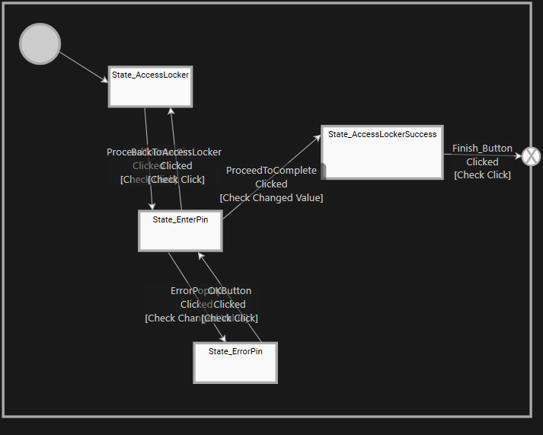
Refer to the image below for substate
-
Add transitions
- From State_EnterPin to State_ErrorPin, rename as ErrorPopUp add Check Changed Value to the Condition
Properties- ConditionOperator = Equal
- ConditionValue = UInt8, 100
- From State_EnterPin to State_AccessLockerSuccess add Check Changed Value to the Condition
Properties- ConditionOperator = Equal0
- ConditionValue = UInt8, 5
- Add Exit point and then add transition from State_AccessLockerSuccess to Exit Point
Properties- Name = Finish_Button
- Sender [Event Filter] = FinishBtn from State_AccessLockerSuccess.
- Add transition from Exit Point to HomeScreen state
Properties- Name = FinishButton
- Sender [Event Filter] = FinishBtn from State_AccessLockerSuccess
- From State_EnterPin to State_ErrorPin, rename as ErrorPopUp add Check Changed Value to the Condition
-
Refer Below image for State placement in StateMachine