Hello,
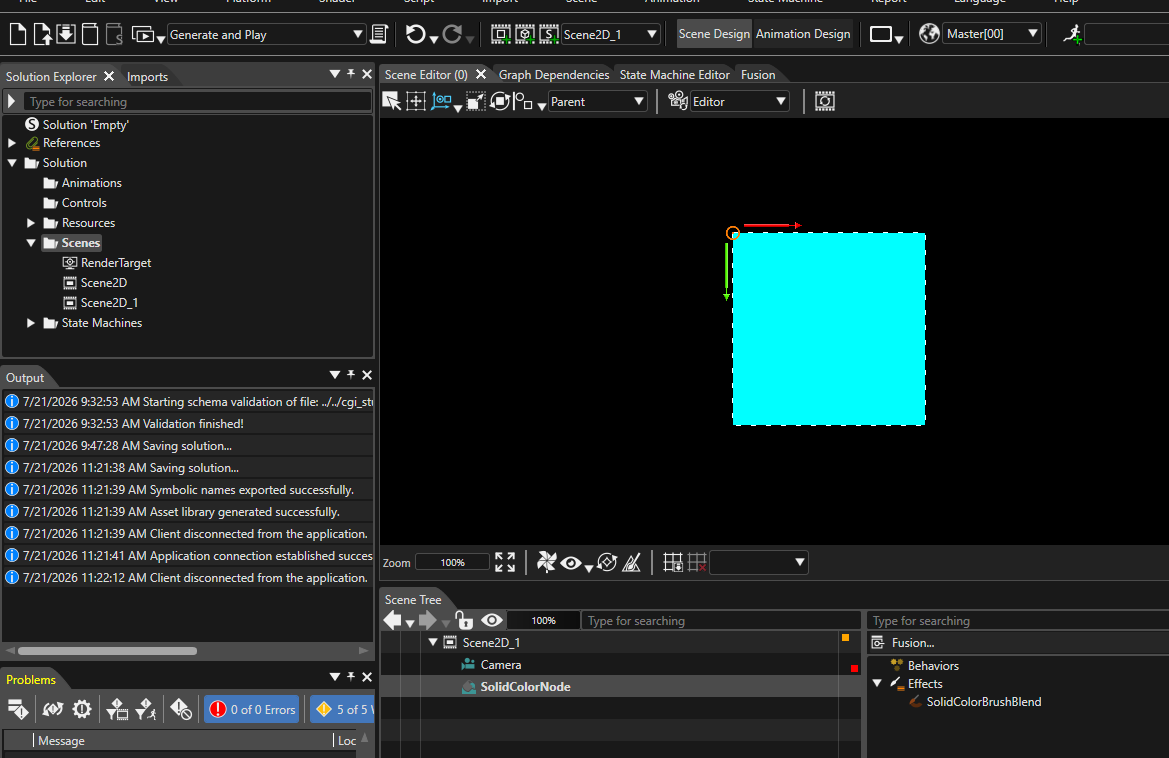
I’m working with two Scene2D nodes, and each scene contains different content (for example, different solid color nodes and other elements).
After completing my work in Scene2D_1, I opened that scene and clicked the Player button to preview it. However, the Player still displays the content from Scene2D instead of Scene2D_1. Please refer to the image below for the issue I’m encountering.
Hello
Thanks for your post!
There are three ways to display a specific Scene2D in the Player. Option 1: Using the CGI Panel
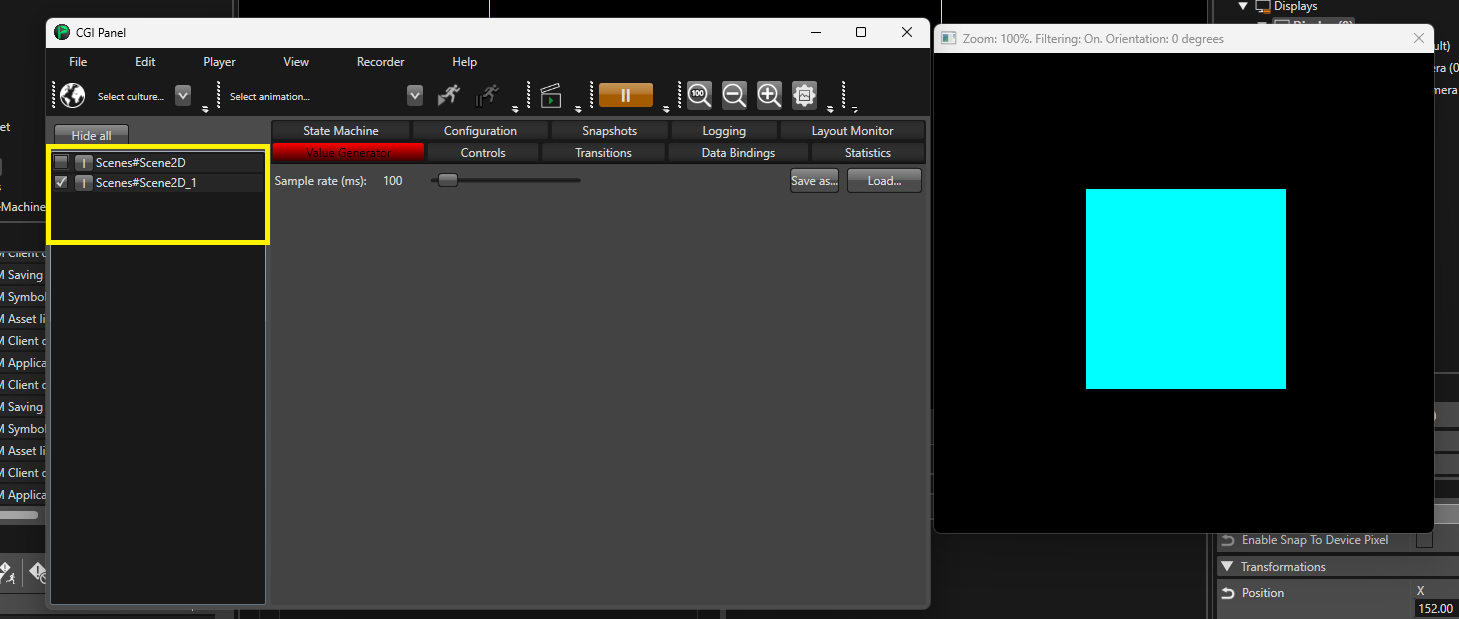
Click Generate and Play. This will open three windows. One of them is the CGI Panel.
In the CGI Panel, you’ll see a list of all the available scenes. Select the checkbox for the scene you want to display (for example, Scene2D_1). The Player will then display the content of the selected scene.
Option 2: Using the State Machine
Another way is to use the State Machine.
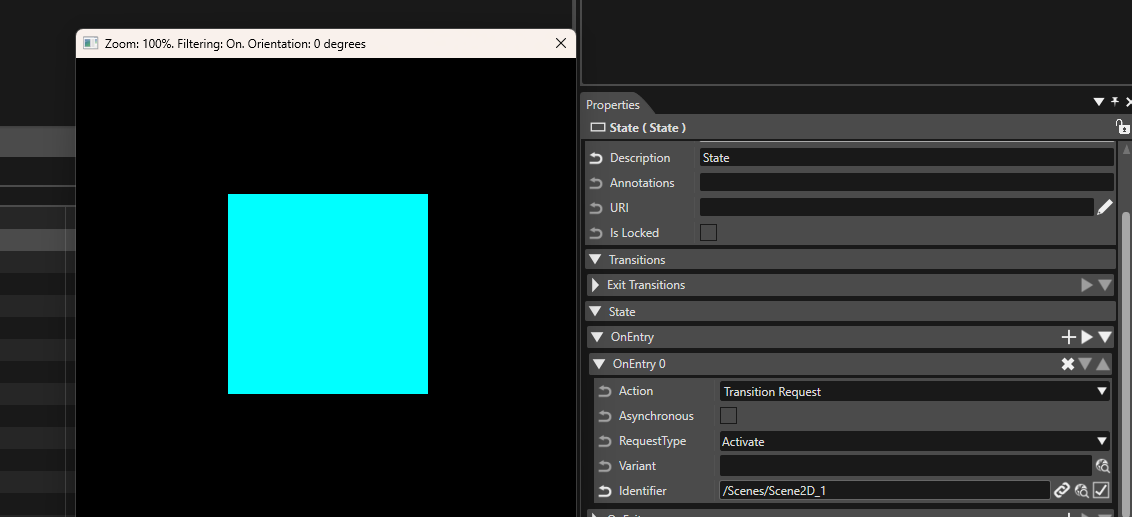
By default, the State Machine contains an Initial State, a State, and a Transition connecting them. If these nodes are not already present, add an Initial State, a State, and a Transition, then connect the Initial State to the State using the Transition.
Next, copy the path of the Scene2D you want to display (for example, /Scenes/Scene2D_1).
Then:
Select the State node in the State Machine.
In the Properties panel, expand the State section.
Under OnEntry, click the + button to add a new entry.
Change the Action to Transition Request.
Set the Request Type to Activate (if it is not already selected)..
Paste the copied Scene2D path into the Identifier field.
Now click the Generate andPlay button, and the selected Scene2D will be displayed
Option 3: Using “Generate and Play Selected Scene”
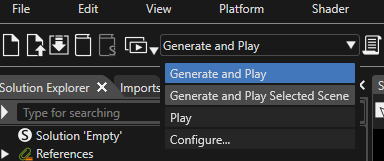
This is the quickest way to work with a single Scene2D. Click the arrow besideGenerate and Play, and chooseGenerate and Play Selected Scene.Then, select the required Scene2D in the Solution Explorer and click the Generate andPlay button. The Player will display only the selected Scene2D.